Using the Option Hedge desktop app interface
First launch & activation
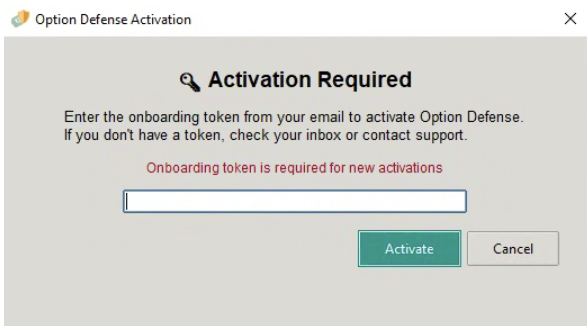
Goal: Activate the app on this device using your onboarding token.
What you see
- A modal titled "Option Hedge Activation" with the header "🔑 Activation Required".
- A single input field for the token plus Activate and Cancel buttons.
Steps
- Launch the app.
- Paste the onboarding token from your email.
- Click Activate (or press Enter).
- If the token is invalid, an error appears and the dialog stays open.
Scan positions (collapsed/expanded)
Goal: Review existing option positions quickly.
What you see
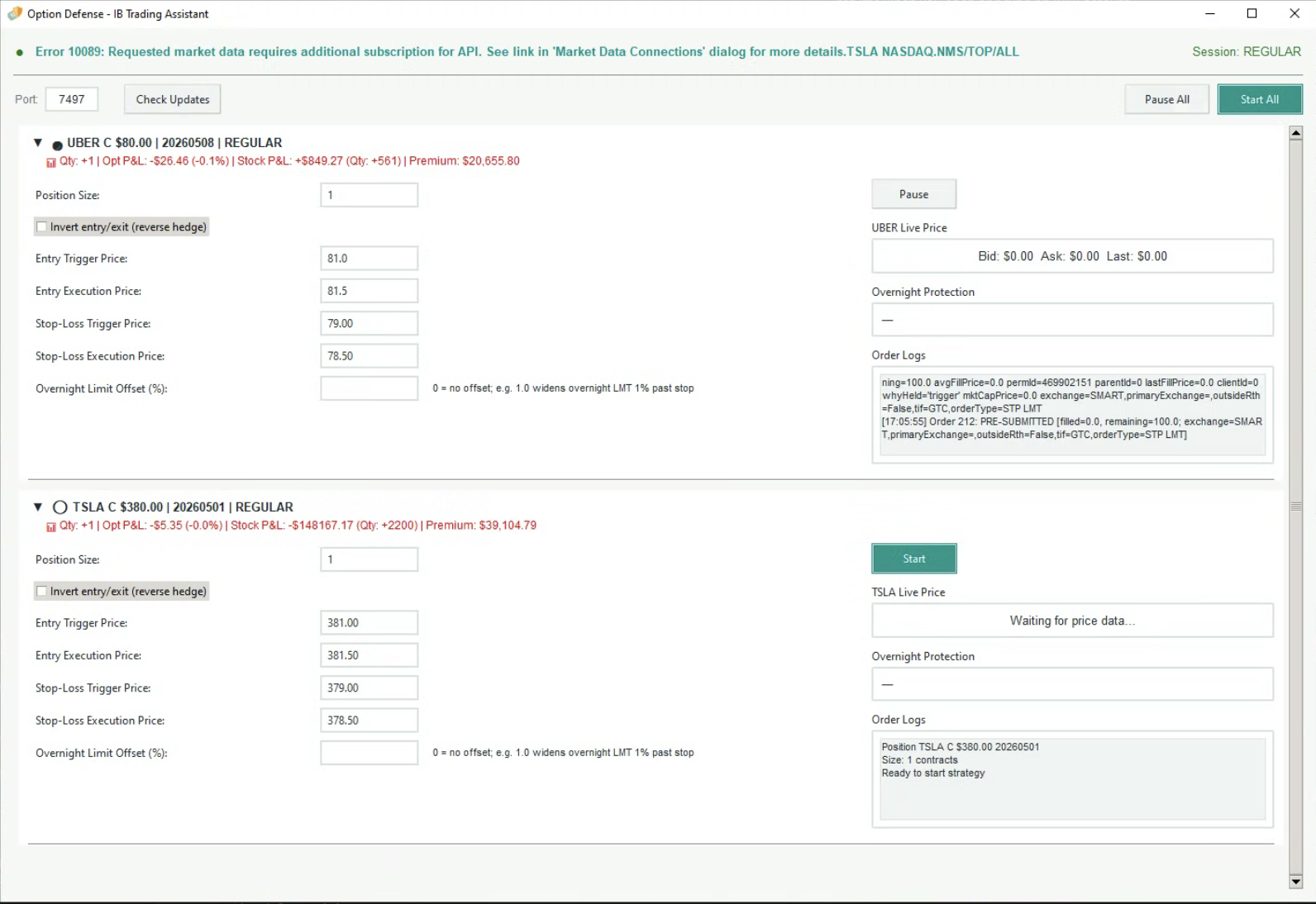
- Each position is a collapsible header.
- Line 1: arrow (▶/▼), status emoji, symbol, option type, strike, expiry.
- Line 2: Qty, option P&L (color-coded), optional stock P&L, premium.
Behavior
- Active strategies expand by default.
- Click the header to expand/collapse details.
Configure the hedge rules
Goal: Define entry and stop‑loss logic for this position.
Fields
- Position Size
- Invert entry/exit (reverse hedge)
- Entry Trigger Price
- Entry Execution Price
- Stop‑Loss Trigger Price
- Stop‑Loss Execution Price
- Overnight Limit Offset (%) — optional; widens the LMT price during the OVERNIGHT venue only.
0(default) leaves the Execution price untouched. See Overnight protection below for details.
Hedging logic by option type
- CALL → entry action is BUY stock; if Invert is on, entry action becomes SELL.
- PUT → entry action is SELL stock; if Invert is on, entry action becomes BUY.
- Entry order type is STP LMT using Entry Trigger (auxPrice) and Entry Execution (lmtPrice).
- Quantity = Position Size × 100 shares.
Order lifecycle
- Entry fills → place stop‑loss exit as STP LMT with Stop‑Loss Trigger/Execution.
- Exit action is always the opposite of entry (SELL if BUY, BUY if SELL).
- Exit fills → reset and place a new entry order (cycle continues).
Validation rules
- All fields required; position size must be > 0.
- Entry/exit prices must align with direction:
- BUY entry → execution ≥ trigger
- SELL entry → execution ≤ trigger
- SELL exit → stop‑loss execution ≤ trigger
- BUY exit → stop‑loss execution ≥ trigger
- Entry trigger and stop‑loss trigger must not overlap.
Start, pause, and save a strategy (per position)
Start
- Appears when no active strategy is running.
- If validation fails, an inline error appears: "⚠ Fix X error(s) before starting."
Pause
- Appears when a strategy is active.
Save
- Appears only when an active strategy has unsaved changes.
- Updates active orders if the strategy is not paused.
Start All / Pause All
Start All
- Enabled when at least one configured position is not active or is paused.
- If all are active, the app shows: "All configured positions already have active strategies."
Pause All
- Pauses all active, unpaused strategies.
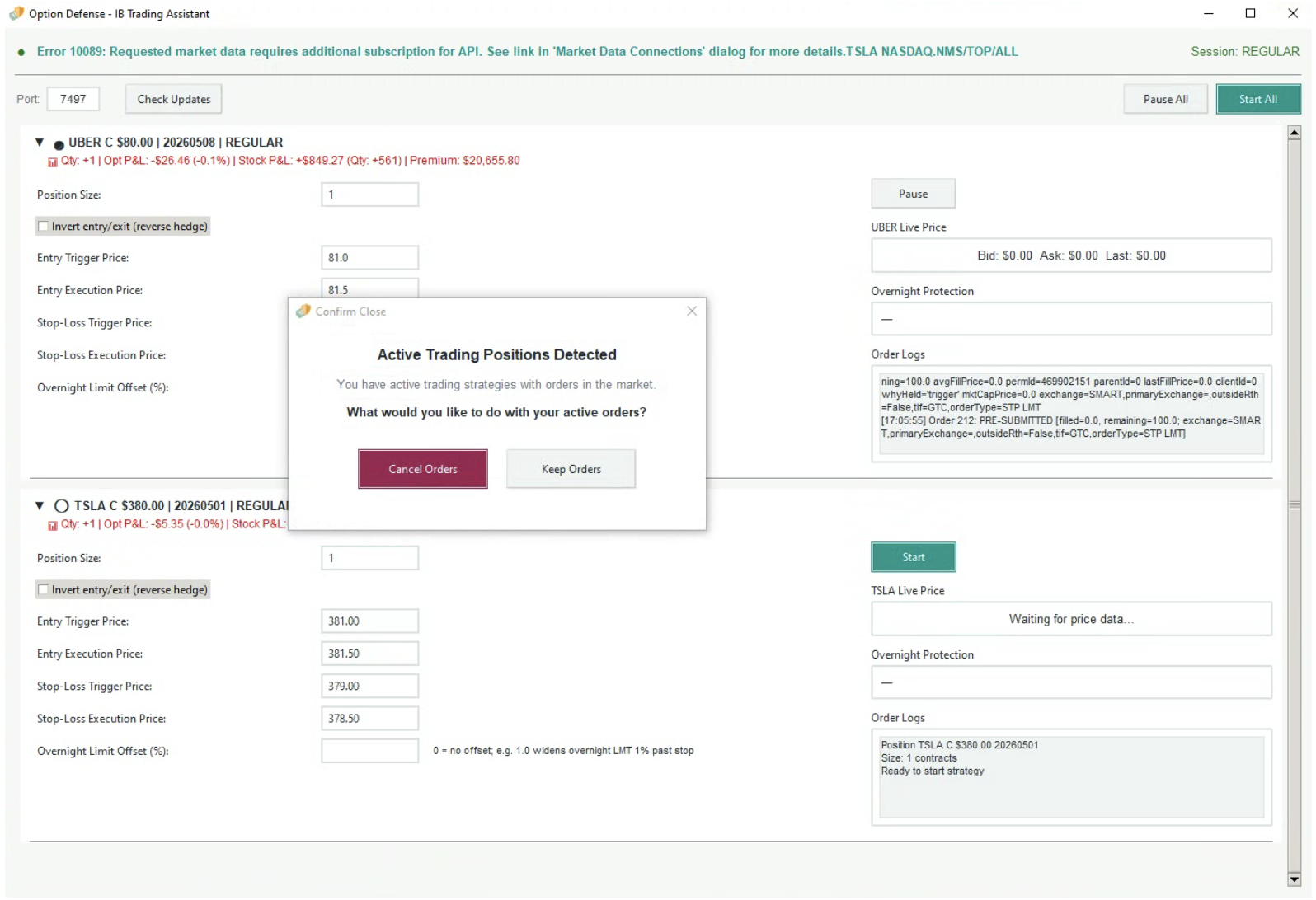
Closing with active orders
If active orders exist, a confirmation dialog appears with:
- Cancel Orders (cancel & close)
- Keep Orders (close without canceling)
- Close (X) → Don't close
Overnight protection
Goal: Keep the hedge armed during the OVERNIGHT venue (~20:00–03:50 ET), when IBKR rejects native STP / STP LMT orders.
How it works During regular trading hours the app routes STP LMT orders to SMART as usual. When the venue switches to OVERNIGHT, those orders are cancelled and replaced by an in-app watcher that emulates IBKR's triggerMethod=4 (bid/ask) semantics:
- BUY trigger fires when the ASK crosses up through the stop price.
- SELL trigger fires when the BID crosses down through the stop price.
When the trigger fires, the watcher places a plain LMT order on the OVERNIGHT venue. When the venue switches back, any active OVERNIGHT order is cancelled and a fresh STP LMT is placed on SMART. You may briefly see a watcher status flip to cancelled during these transitions.
The "Overnight Protection" panel
A panel sits on the right side of each expanded position (above the logs) and shows the live state of any installed watchers — one line per role (entry / exit):
- pending — watcher created, not yet armed.
- armed @ 73.05 (bid 74.62, ask 74.64, 3s ago) — actively watching the book; the trailing duration is the time since the last tick.
- fired 04:23:11Z (LMT @ 73.05) — trigger crossed; LMT order has been placed on OVERNIGHT.
- cancelled — watcher torn down (e.g. by a session transition or a stop / pause action).
- STALE suffix — appears when no tick has arrived for 10+ minutes while the watcher is armed; the app also writes a warning to the position log. Common causes: very illiquid symbol, missing OVERNIGHT data‑feed entitlement, or feed disruption.
Overnight Limit Offset (%)
A non-zero offset widens the OVERNIGHT LMT relative to the stop, trading a worse fill on a clean trigger for better protection against a gap-through:
- On a BUY trigger:
limit = stop × (1 + offset/100)(limit sits above the stop). - On a SELL trigger:
limit = stop × (1 - offset/100)(limit sits below the stop).
Set to 0 to disable (default). Typical values: 0.5 to 2.0. The offset only applies while the OVERNIGHT watcher is active; the SMART STP LMT during regular hours uses your configured Execution price as-is.
The offset direction is determined automatically by the order's BUY / SELL action — including any inversion you've configured. You don't need to flip the sign when Invert is on.
Live Price during overnight
The position's Live Price field is fed from two sources, whichever is currently active:
- During regular hours: the SMART subscription.
- During OVERNIGHT: the watcher's OVERNIGHT subscription.
If neither feed is delivering quotes (e.g. an unlisted symbol or an entitlement gap), the field stays at the last known value.
Connection to IBKR
Goal: Update the IBKR API port and reconnect without restarting.
What you see
- Port field in the toolbar.
- Save & Reconnect appears only after you change the value.
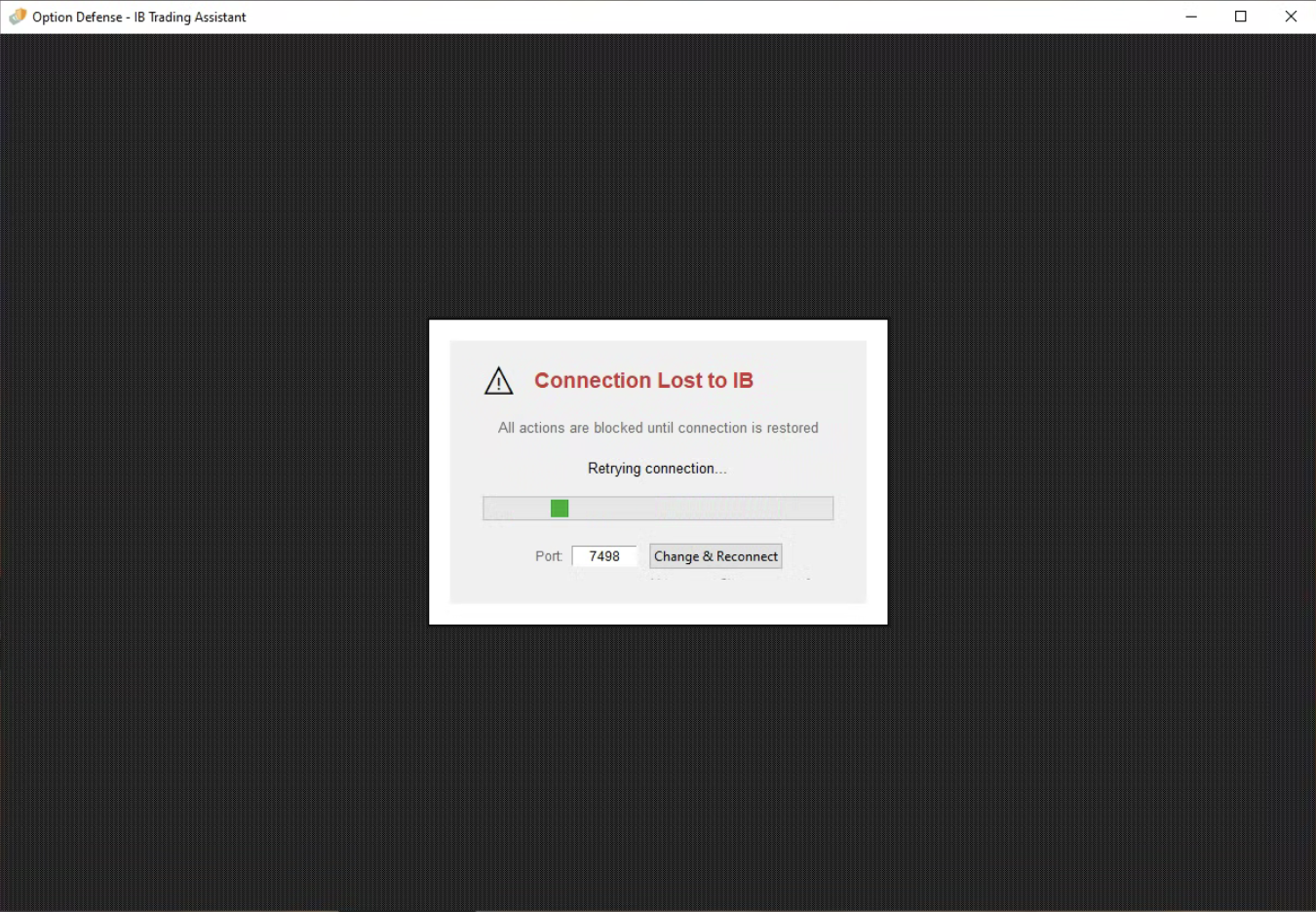
- If the connection drops, a full-screen overlay: "Connection Lost to IB".
- Message: "All actions are blocked until connection is restored."
- Progress bar and reconnect status.
- Port input + Change & Reconnect button.
Steps (connected)
- Edit the port number.
- Click Save & Reconnect.
- The app validates the input (numeric, 1024 to 65535).
- The app reconnects and reloads the session.
Steps (connection lost)
- Wait for automatic retries.
- If needed, change the port and click Change & Reconnect.
License warning (grace period)
If license validation fails but is non‑fatal, a banner appears: "⚠️ License validation failed. Running in grace period…"
The app allows up to 24 hours of grace before showing a fatal error.

Update notifications
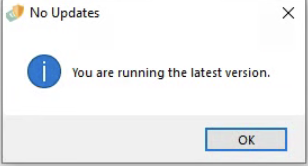
Manual check: toolbar → Check Updates.
If an update is available, a dialog shows:
- Current → latest version
- Release notes
- Update Now / Later