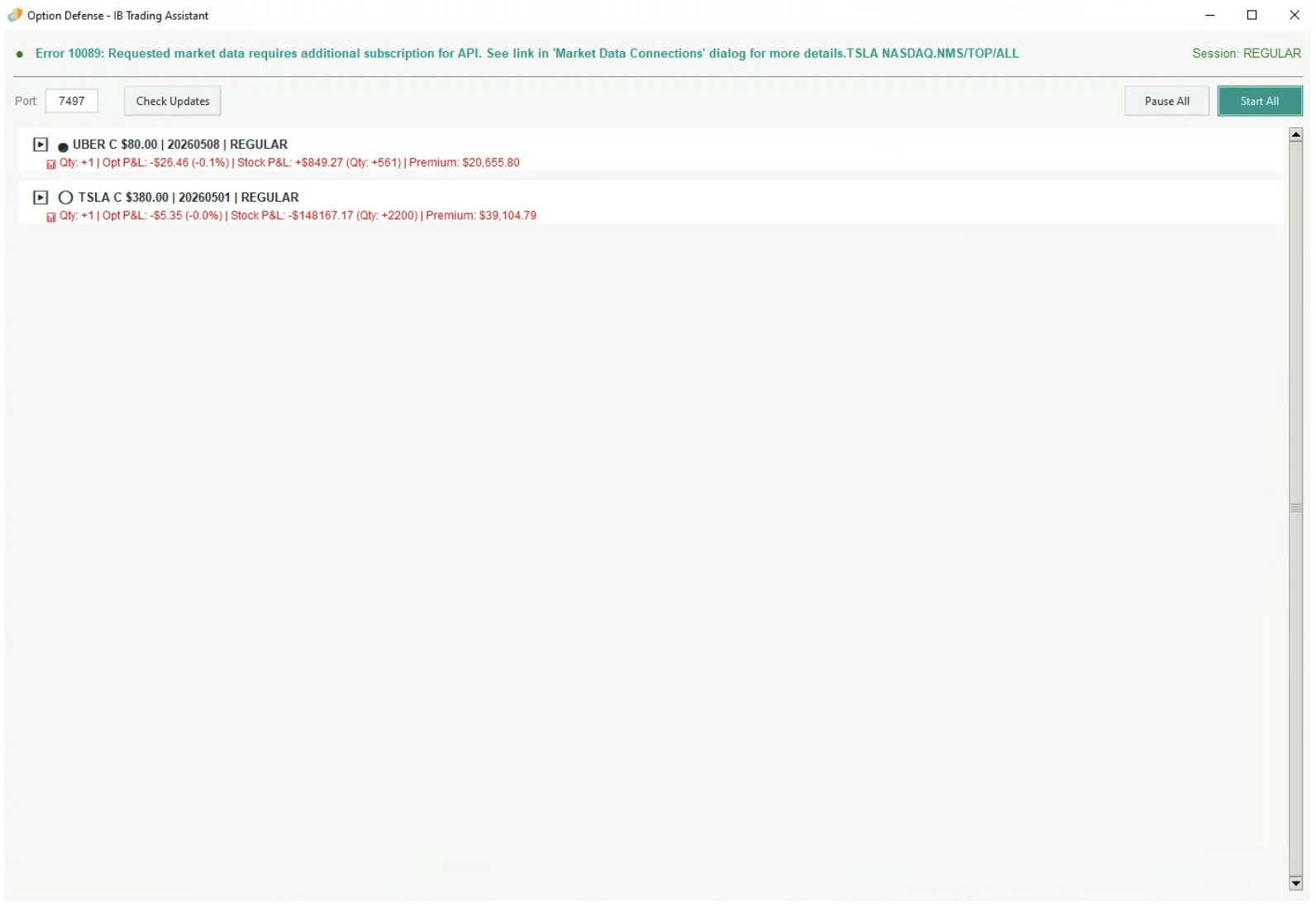
Install (Windows)
Requirements
- Windows 10/11
- IBKR account (paper or live)
- TWS or IB Gateway installed
Installation flow
- Complete the Stripe purchase form.
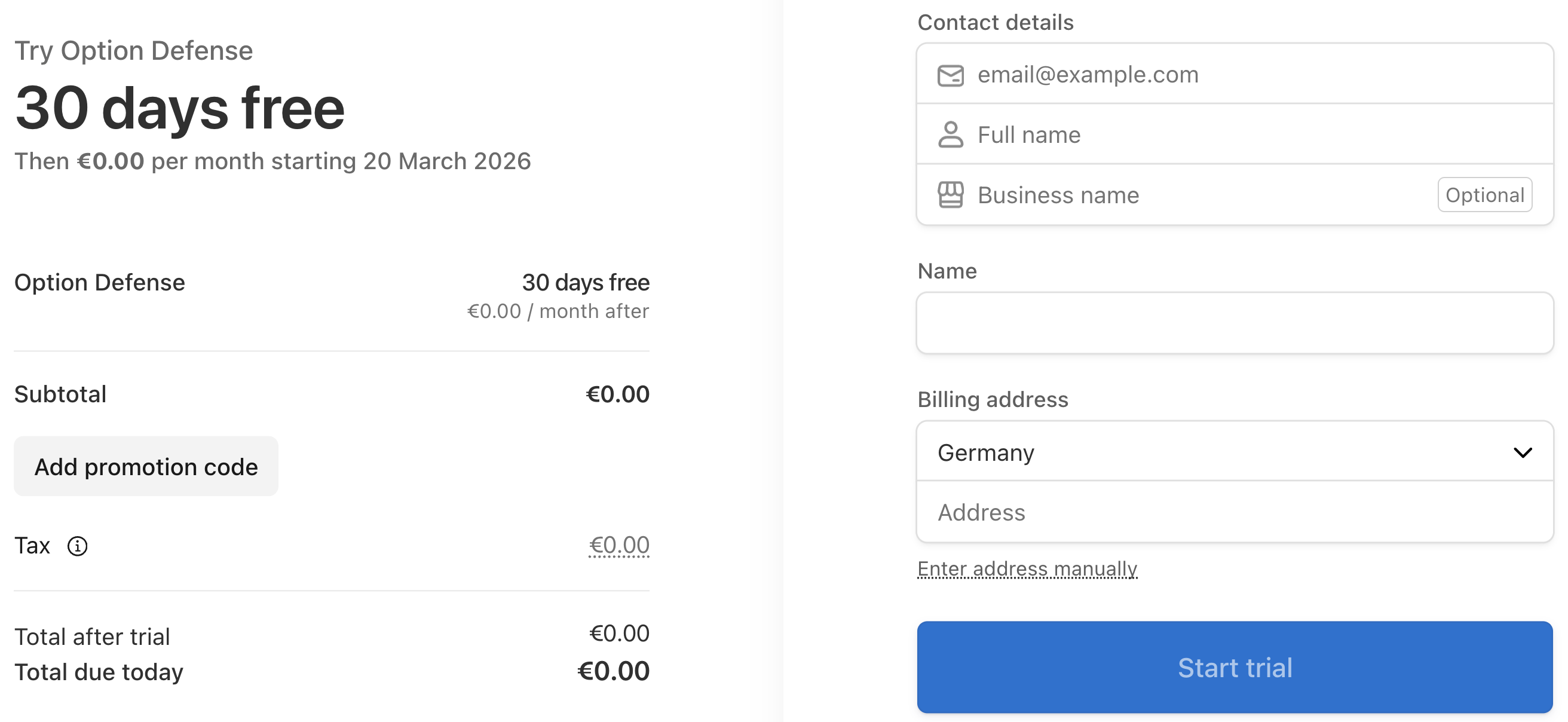
Disclaimer: The product is currently free. Submitting the form starts a free trial with a $0 subscription for an unspecified period. If the app becomes paid later, we will email you to add payment details; otherwise the app may stop working.
- Check your email for the download link + onboarding token.
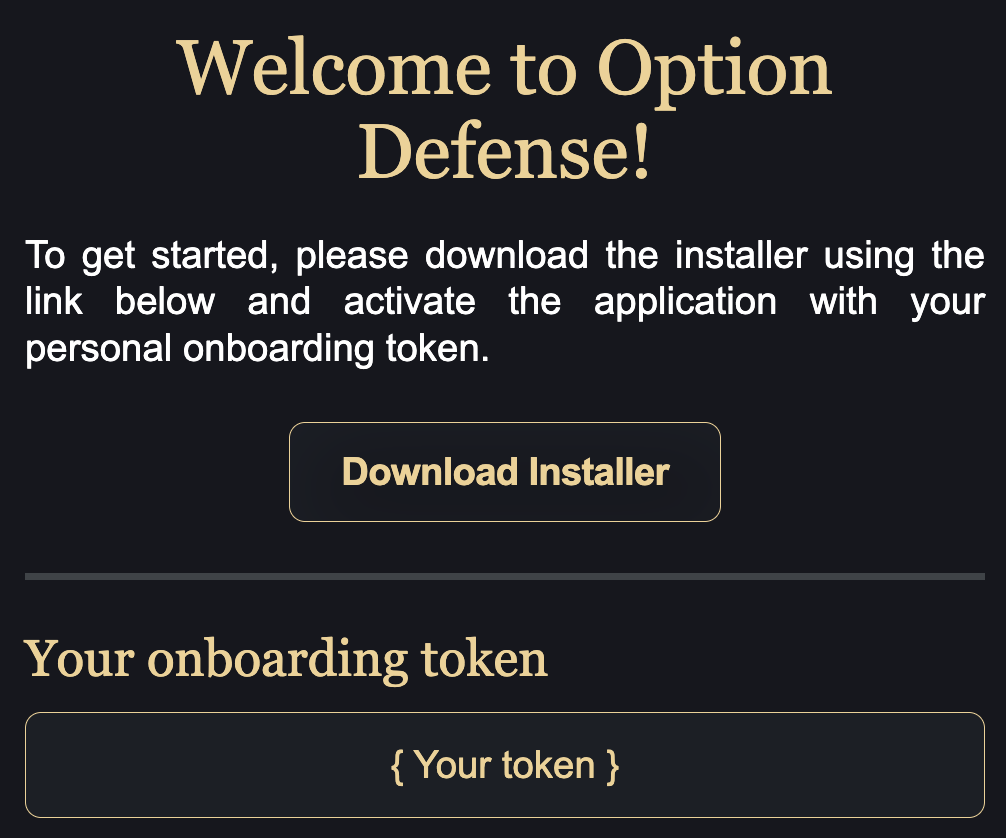
INFO
Keep this email. You will need the token to activate each device that runs Option Defense.
When contacting support, use the same email address to speed verification.
- Download and run the installer.
INFO
Verify the installer's SHA256 checksum against the value shown here.
- Check TWS/IB Gateway settings.
- TWS: Full UI, recommended if you're new to the IBKR API.
- IB Gateway: Lighter and uses fewer resources; still requires GUI login.
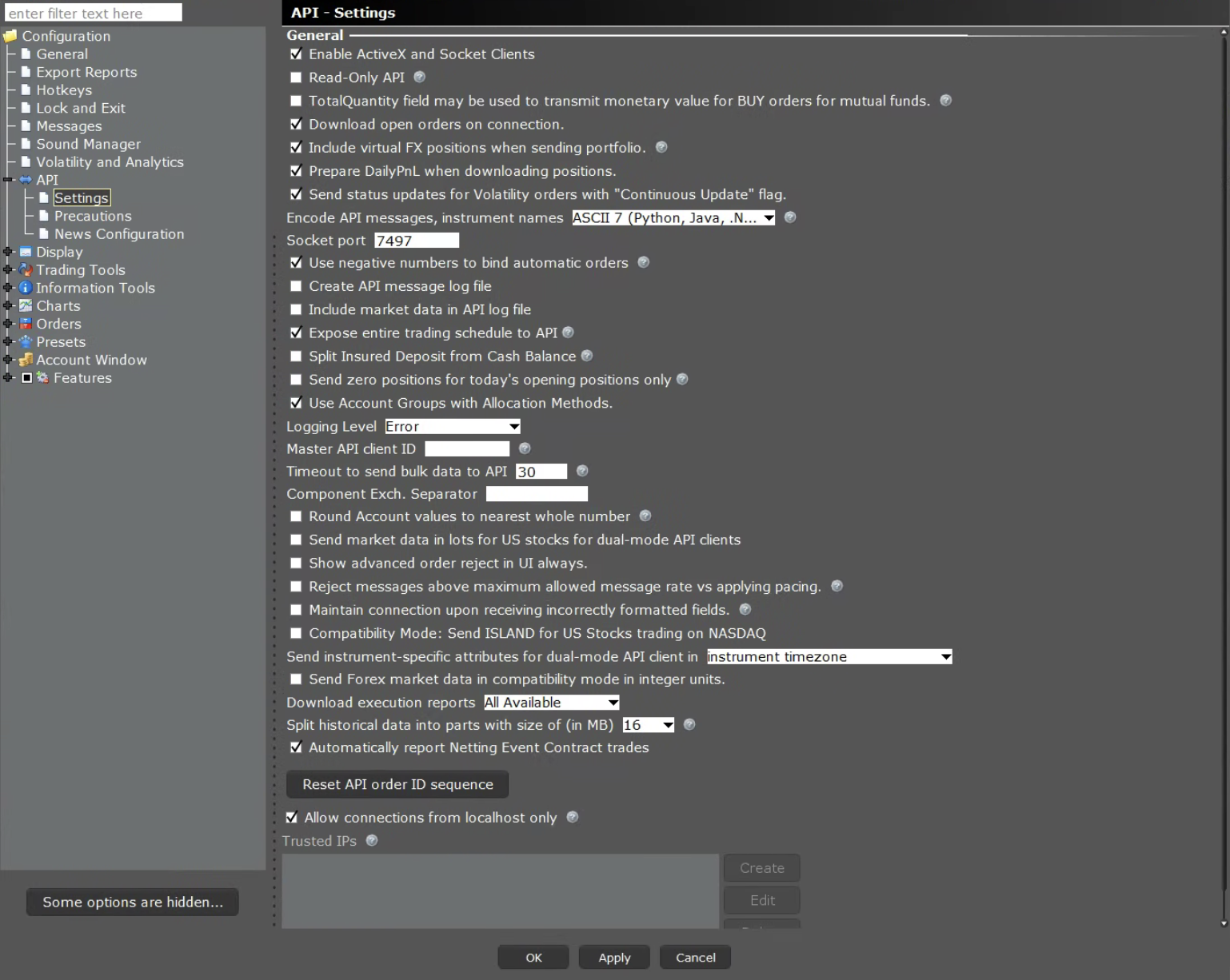
Enable API access:
- TWS: Edit → Global Configuration → API → Settings → Enable “ActiveX and Socket Clients.”
- IB Gateway: Socket API is enabled by default.
Port settings:
- Live:
7496 - Paper:
7497 - The port in Option Defense must match TWS/IB Gateway.
INFO
By default, the app uses 7497. We recommend starting with a paper account.
Read-only API toggle:
- Disable Read-Only in TWS API settings to allow order execution.
Your final configuration should look something like this:
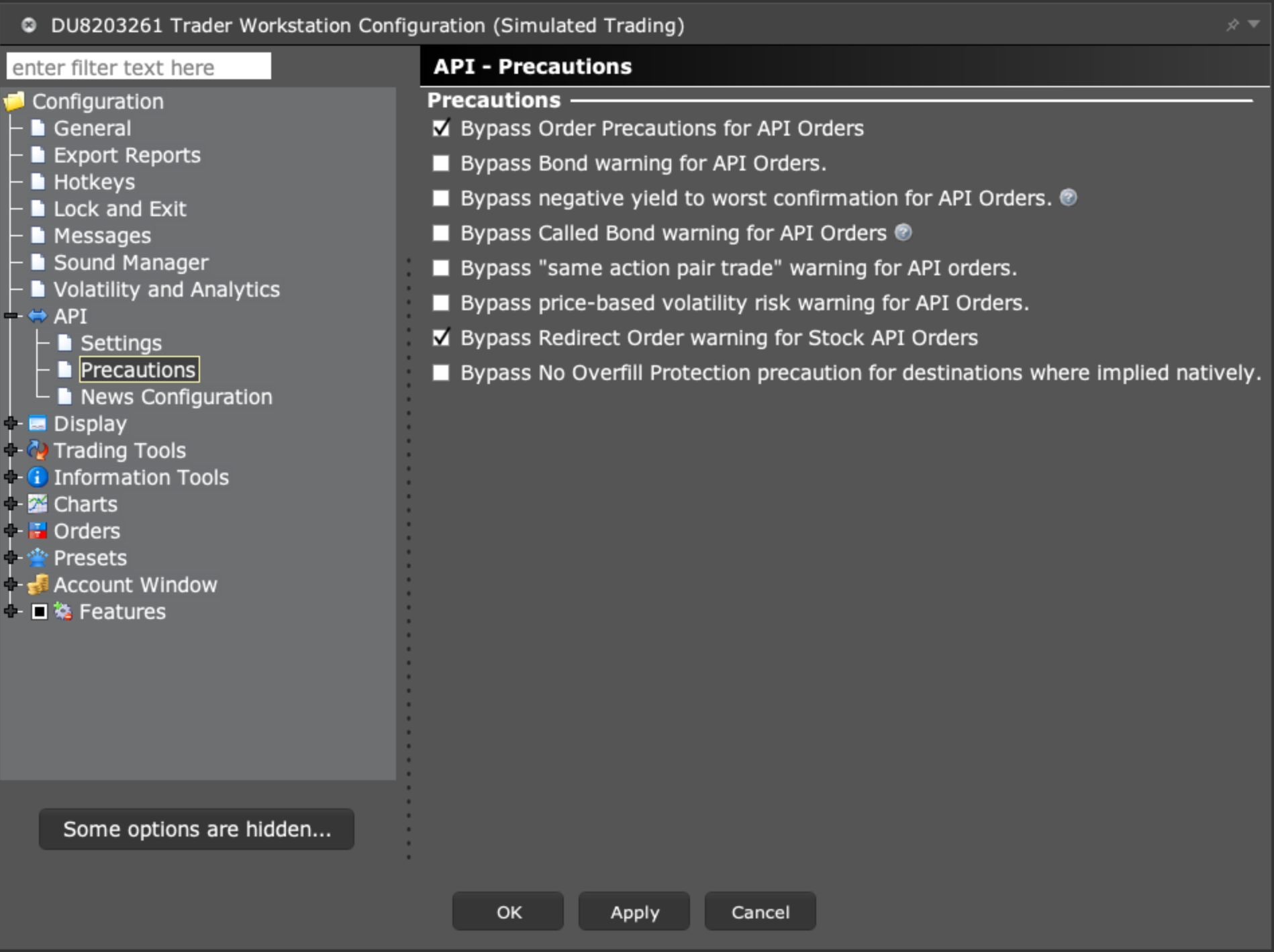
To ensure orders open smoothly without any warnings or need for manual confirmation, make sure to select the relevant checkboxes in the Precautions menu:
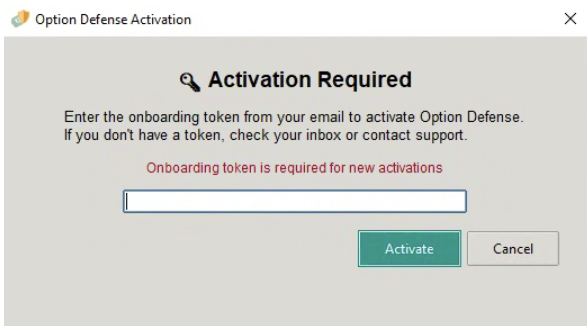
- Launch the app and paste your token.
- Start protecting your options positions.